
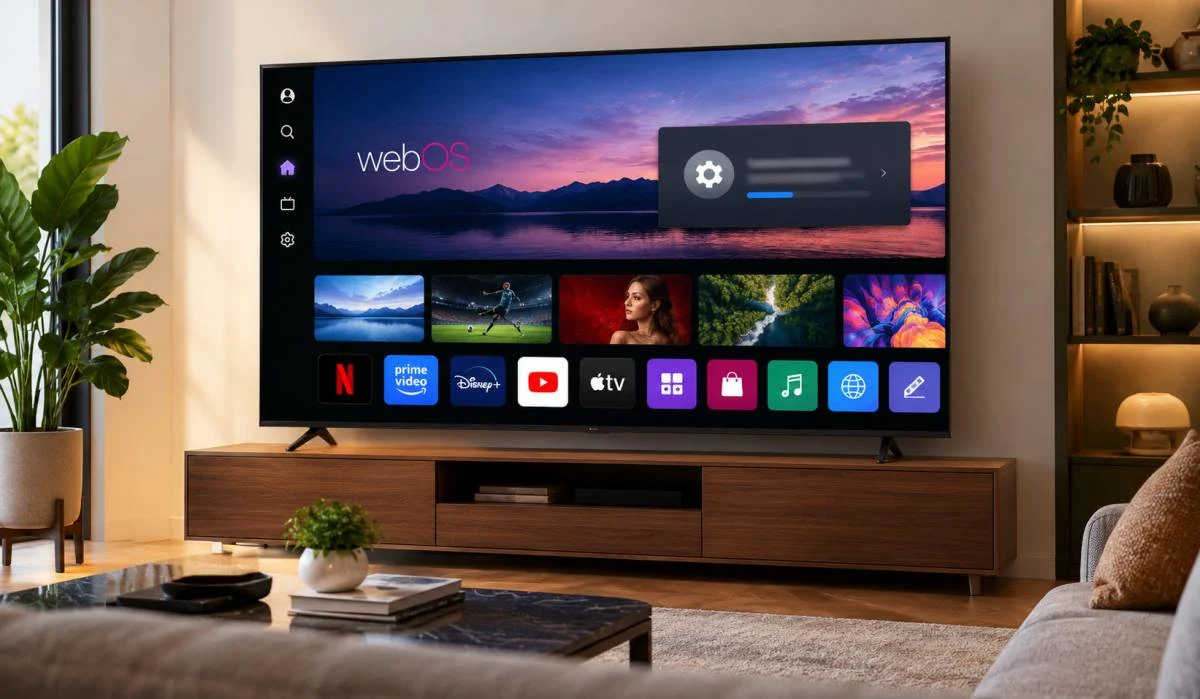
Your LG TV works fine. But it could work better. Updates bring new features. They fix bugs. They improve security and they are easier to install than you think. Learning how to update webOS on LG Smart TV takes just a few minutes.
Most TVs do it automatically but if you want to force an update, you can. Go to Settings. Find Support. Tap Software Update. Check for updates. That is it. If your TV is not connected to the internet, you can use a USB drive instead. This guide covers every method online updates, USB updates even updating without a remote. Read on and get your TV up to date.
First, Check Your webOS Version
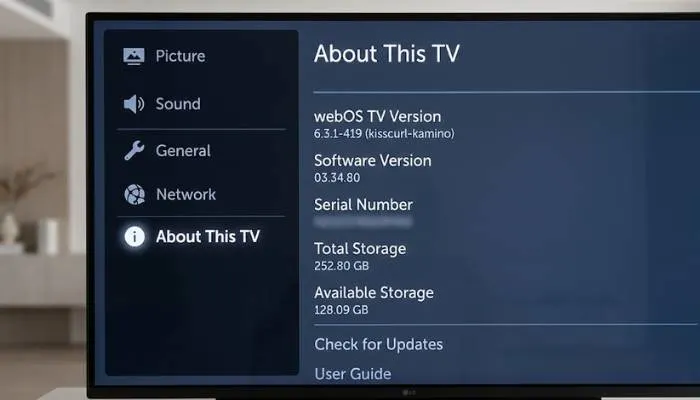
Before you update, find out what version you are running. This tells you where to look in the settings.
Press the Settings button (the gear icon) or the Mute button on your remote three times . Your webOS version will appear on the screen. If you have a newer TV (2020 or later, webOS 5.0+), the menus are slightly different than older models. The steps below cover both.
Read More: LG Smart TV Features Explained: Simple Guide for Buyers.
How to Update webOS Over the Internet?
This is the standard method. Your TV needs to be connected to Wi-Fi or an Ethernet cable.
For 2020 and Later TVs (webOS 5.0+)
- Press the Settings button on your remote.
- Go to All Settings.
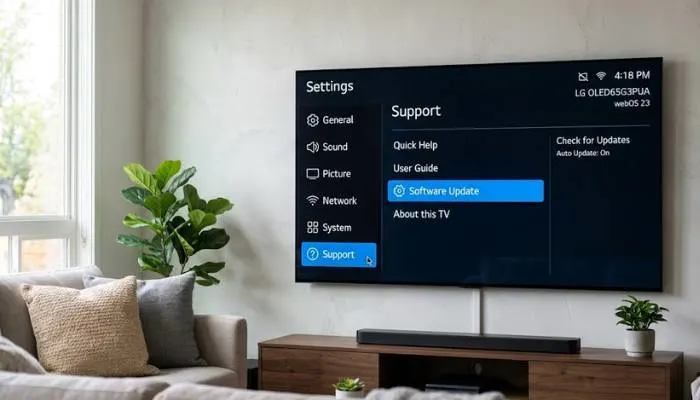
- Select Support.
- Select Software Update.
- Select Check for Updates .
If an update is available, the TV will ask you to install it. Follow the on-screen prompts.
For 2019 and Earlier TVs (webOS 4.5 or older)
- Press the Settings button.
- Go to All Settings.
- Select General.
- Select About This TV.
- Select Check for Updates .
For Very Old TVs (NetCast)
If your TV is older and uses NetCast instead of webOS, the path is different. Press the Smart or Home button, then go to Settings > Support > Software Update > Check Update Version .
How to Update LG TV Software Without a Remote?
If you lost your remote or the buttons are broken, you can still update the TV. You have two main options.
Option 1: Use the LG TV App
Download the official LG TV remote app on your smartphone. Make sure your phone and TV are on the same Wi-Fi network. The app has a settings menu that mirrors the remote. You can navigate to the software update section from there.
Option 2: Use a USB Mouse
Plug a standard USB mouse into the TV's USB port. A cursor will appear on the screen. Click the Settings gear icon in the corner. Use the mouse to navigate to Support > Software Update .
How to Update Old LG TV Software Using USB?
If your TV is not connected to the internet, or if the online update fails, you can do it manually with a USB drive. This method works for most webOS models.
Step 1: Find Your Model Number
You need the exact model number. It is usually on a sticker on the back of the TV. You can also press the Mute button three times on the remote to see it on screen .
Step 2: Download the Firmware
- Go to the LG Support website for your region.
- Enter your model number in the search box.
- Find the latest software file and download it to your computer .
Step 3: Prepare the USB Drive
- Format your USB drive to FAT32 or NTFS.
- Extract the downloaded
.zipfile. - Create a folder named LG_DTV in the root directory of the USB drive.
- Copy the extracted
.epkfile into the LG_DTV folder .
Step 4: Install on the TV
- Plug the USB drive into a USB port on your TV.
- A pop-up will appear asking if you want to update. Select Install or Yes.
- The TV will update in the background. You can keep watching TV during this time .
- Do not unplug the TV or remove the USB drive until it is done.
Turn On Automatic Updates
The easiest way to stay current is to let the TV do it for you.
- Go to Settings > All Settings > Support > Software Update > Auto Update and set it to On .
- If you have a 2019 model, the path might be Settings > All Settings > General > Support > Software Update > Auto Update .
You May Also Read: LG C5 vs LG C6 Differences: Which OLED TV Is Better?.
What About webOS 26?
LG is rolling out webOS 26 to older TVs. This is part of a four-year upgrade commitment. TVs from 2022 and newer are eligible.
The rollout is gradual. It started with the G5 OLED, then moves to the C5 and B5 series, and eventually reaches older LCD models. Some 2022 TVs might not get it until late 2026 or early 2027 .
Important: Once you update to webOS 26, you cannot go back to the older version . If you prefer your current interface, turn off Auto Update before the new version reaches your TV. The firmware version to look for is 43.21.71. It is about a 2GB download .
FAQs
1. Why does my TV say "No updates available"?
This means your TV is already running the latest software for your model. LG rolls out updates in phases. If you are waiting for webOS 26, it might not have reached your specific model yet .
2. Can I update an old LG TV to webOS?
You cannot install a new operating system on an old TV. webOS updates are tied to the TV's hardware and model year. However, LG's Re:New program is bringing webOS 26 to TVs from 2022 and newer. Older TVs will not get new major versions .
3. What happens if the TV freezes during the update?
Do not panic. The TV may restart automatically. Keep it plugged in and wait 5 to 10 minutes. Do not unplug it or turn it off during this time .
4. How do I update my old LG TV without internet?
Use the USB method. Download the firmware from the LG website on a computer, put it on a USB drive in a folder named LG_DTV, and plug it into the TV .
5. How do I know if my TV is webOS or NetCast?
If your TV is from roughly 2014 or later, it likely runs webOS. Older models use NetCast. The settings menus are different. If you see "Smart" or "Home" buttons instead of a gear icon, it might be NetCast .