
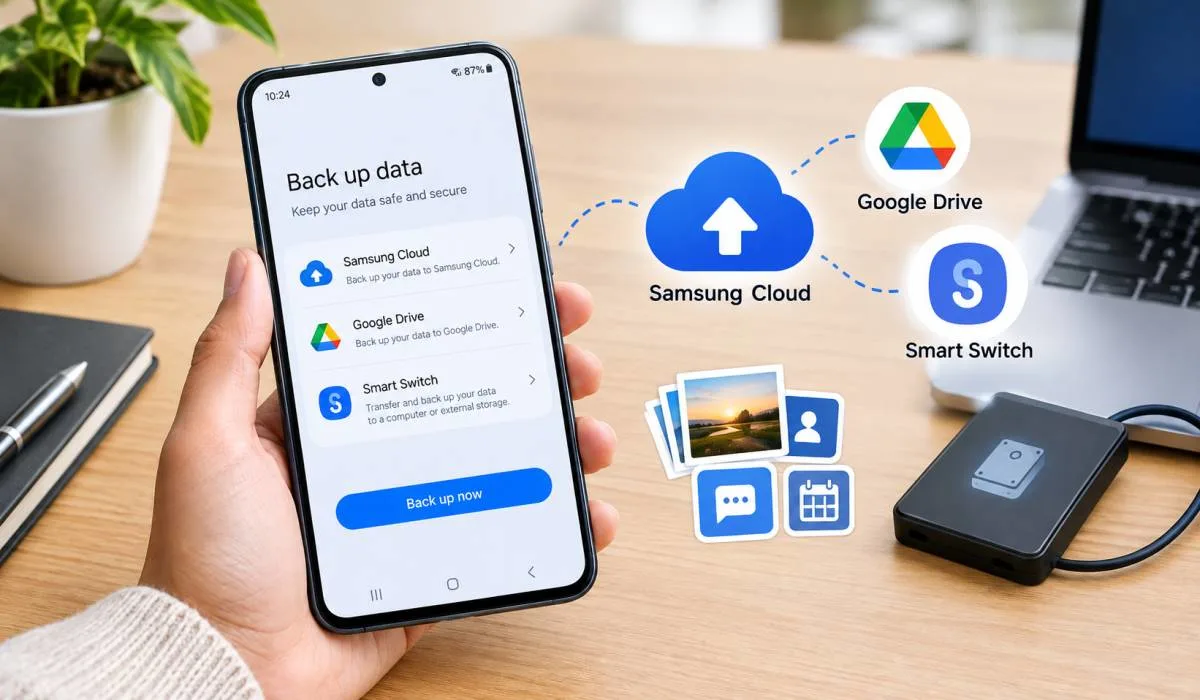
Your phone has everything. Photos, contacts, messages and apps. Years of memories. What if you lose it? Phone breaks gets stolen stops working then what? That is why backup matters. Learning how to backup Samsung Galaxy phone is easy.
You have many options. Samsung Cloud, Google Drive, Samsung Smart Switch, PC & External hard drive. Each one works well. Do not wait for disaster. Start backup today. It takes ten minutes. Saves you from crying later. Let me tell you simple steps. No confusion. Just clear methods that work.
Method 1: Samsung Cloud Backup
This is the easiest way. Samsung gives you free cloud storage. It backs up your important stuff automatically.
What gets backed up:
- Contacts
- Calendar
- Messages
- Call logs
- Home screen layout
- Wi-Fi passwords
- Apps and app data
- Settings
How to do it:
- Open Settings on your Samsung phone
- Tap Accounts and Backup
- Tap Samsung Cloud
- Tap Back up data
- Select what you want to backup
- Tap Back up now
- Wait for it to finish
That's it. Your data is safe.
Auto backup:
You can set it to backup automatically. Go to Samsung Cloud. Tap Back up data. Turn on Auto backup. Choose how often. Daily. Weekly. Monthly.
Free storage:
Samsung gives 15GB free. If you need more, you pay. But 15GB is enough for most people.
Read More: Upcoming Samsung Tablets in 2026: Price and Features.
Method 2: How to Backup Samsung Phone to Google Drive
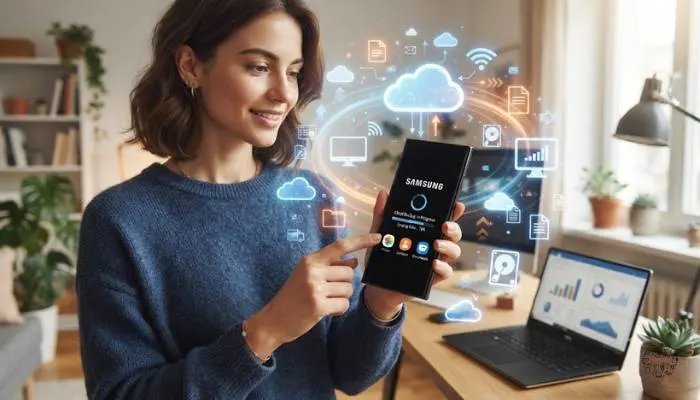
Google Drive is another good option. Most people already have a Google account.
What gets backed up:
- Contacts
- Calendar
- Gmail
- Google Photos
- Chrome bookmarks
- App data (some apps)
- Device settings
How to do it:
- Open Settings on your phone
- Tap Google
- Tap Backup
- Turn on Back up to Google Drive
- Tap Back up now
For Google Photos:
- Open Google Photos app
- Tap your profile picture
- Tap Photos settings
- Tap Backup
- Turn on Backup
Now your photos and videos go to Google Photos. Free storage is 15GB. Shared with Gmail and Drive. If you need more, Google One plans start at ₹130 per month for 100GB.
Important: Google backup does not save everything. Your home screen layout. Your Samsung apps. Your call logs. These go to Samsung Cloud. So use both. Samsung Cloud for phone stuff. Google Drive for Google stuff.
Method 3: How to Backup Samsung Galaxy Phone to PC
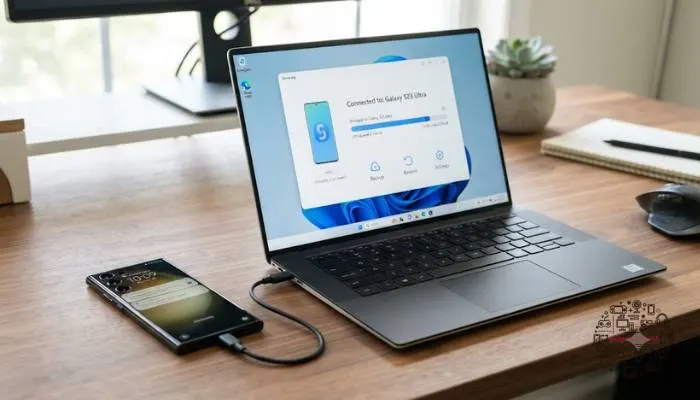
Sometimes you want a copy on your computer. No internet needed. Full control. This is how to backup Samsung Galaxy phone to PC.
Using Samsung Smart Switch
Samsung Smart Switch is the official tool. Free. Easy. Works on Windows and Mac.
Steps:
- Download Samsung Smart Switch on your PC from Samsung website
- Install it
- Open Smart Switch on PC
- Connect your phone with USB cable
- Allow permission on phone
- Smart Switch will detect your phone
- Click Backup
- Select what you want to backup
- Click OK
- Wait for backup to finish
What gets backed up:
- Contacts
- Messages
- Photos
- Videos
- Music
- Apps
- Settings
- Call logs
How to restore:
- Connect phone to PC
- Open Smart Switch
- Click Restore
- Select backup file
- Choose what to restore
- Click OK
Using USB Cable Manually
You can also copy files manually. No software needed.
- Connect phone to PC with USB cable
- On phone, swipe down notification
- Tap USB charging this device
- Change to File Transfer
- Open File Explorer on PC
- Find your phone
- Open Internal Storage
- Copy folders you want (DCIM, Pictures, Download, WhatsApp)
- Paste to PC folder
This works for photos and videos. Not for apps and settings.
You May Also Read: Top Free Samsung Galaxy Themes 2026: No Subscription Hacks.
Method 4: How to Backup Samsung Phone to External Hard Drive
This is for people who want physical backup. No cloud. No internet. Your data in your hands.
Using USB OTG Cable
Most Samsung phones support USB OTG. You can connect external hard drive directly.
Steps:
- Get USB OTG cable
- Connect external hard drive to phone
- Open My Files app on phone
- Find your files
- Select files you want to copy
- Tap Copy
- Go to USB storage
- Paste files
Important: External hard drive needs its own power. Phone cannot power big drives. Use powered USB hub. Or use SSD which needs less power.
Using PC as Middleman
If OTG does not work, use PC.
- Backup phone to PC using Smart Switch
- Connect external hard drive to PC
- Copy backup folder from PC to external drive
- Done
Simple but takes time.
Using SD Card
If your Samsung phone has microSD slot, use it.
- Insert microSD card
- Open My Files
- Select files
- Tap Copy
- Select SD card
- Paste
Then remove SD card. Keep it safe. Or put in new phone.
Method 5: How to Back Up Samsung Phone to Transfer to New Phone
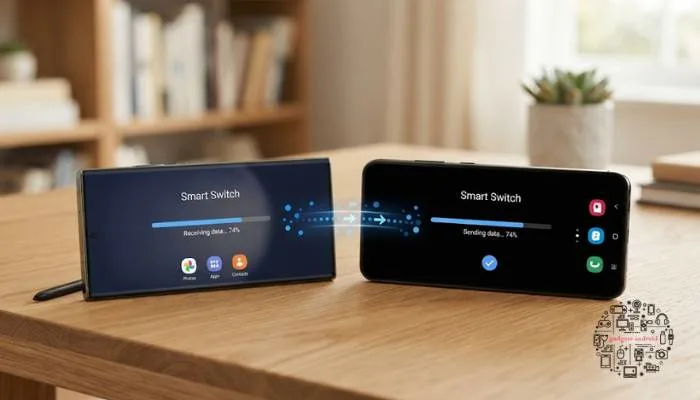
Buying a new Samsung? Here is how to back up Samsung phone to transfer to new phone.
Using Smart Switch (Best Way)
Smart Switch is made for this. It moves everything. Old phone to new phone. Wireless or cable.
Wireless method:
- Install Smart Switch on both phones
- Open on new phone
- Tap Receive data
- Select Galaxy
- Open Smart Switch on old phone
- Tap Send data
- Select Galaxy
- Connect both phones to same Wi-Fi
- Select what to transfer
- Tap Send
Cable method:
- Get USB-C to USB-C cable
- Connect both phones
- Open Smart Switch on new phone
- Tap Receive data
- Select Cable
- Follow instructions
- Select data
- Transfer
What transfers:
- Contacts
- Messages
- Photos
- Videos
- Apps
- App data
- Home screen
- Settings
- Wi-Fi passwords
- Call logs
Everything moves. Even your wallpaper. Even your app folders.
Using Samsung Cloud
- Backup old phone to Samsung Cloud
- Setup new phone with same Samsung account
- During setup, select Restore from Samsung Cloud
- Select backup
- Wait for restore
Using Google Backup
- Backup old phone to Google Drive
- Setup new phone with same Google account
- During setup, select Restore from Google
- Select backup
- Wait for restore
Samsung Smart Switch – Everything You Need to Know
Smart Switch is Samsung's official tool. It does three things.
1. Backup and Restore
Backup phone to PC. Restore later.
2. Transfer Between Phones
Move data from old phone to new phone. Samsung to Samsung. iPhone to Samsung. Any Android to Samsung.
3. Sync with Outlook
Sync contacts and calendar with Microsoft Outlook.
Where to get it:
- Samsung Galaxy phones have it pre-installed
- Download for PC from Samsung website
- Download for Mac from Samsung website
What it transfers:
- Contacts
- Calendar
- Messages
- Photos
- Videos
- Music
- Documents
- Apps
- App data
- Call logs
- Home screen layout
- Settings
- Wi-Fi passwords
- Alarms
- Browser bookmarks
What it does not transfer:
- Some banking apps (need to re-login)
- WhatsApp chats (need WhatsApp backup)
- Netflix downloads (need to re-download)
- Some games (need Google Play Games login)
Backup Checklist – Do This Every Month
Here is simple checklist. Follow it. Stay safe.
Weekly:
- Google Photos backup ON
- Samsung Cloud auto backup ON
Monthly:
- Check Samsung Cloud backup date
- Check Google Drive backup date
- Copy new photos to PC or external drive
Before selling old phone:
- Backup everything to Samsung Cloud
- Backup everything to Google Drive
- Backup to PC using Smart Switch
- Factory reset old phone
Before major update:
- Backup to Samsung Cloud
- Backup to PC
- Charge phone above 50%
Common Problems and Fixes
Problem: Samsung Cloud backup fails
Fix: Check internet connection. Check storage space. Restart phone. Try again.
Problem: Smart Switch does not detect phone
Fix: Use original USB cable. Enable USB debugging. Update Smart Switch. Try different USB port.
Problem: Google Photos not backing up
Fix: Check storage space. Check Wi-Fi connection. Turn off battery saver for Google Photos. Check if Backup is ON.
Problem: Backup takes too long
Fix: Backup overnight. Connect to Wi-Fi. Plug in charger. Do not use phone during backup.
Problem: Not enough cloud storage
Fix: Delete old backups. Delete unwanted photos. Buy more storage. Or backup to PC instead.
Final Words
Backup is important. Do not skip it. You never know when something goes wrong. Phone lost. Phone broken. Phone stolen. Water damage. Anything can happen.
Use Samsung Cloud for phone data. Use Google Drive for Google data. Use Smart Switch for PC backup. Use external drive for extra safety.
Do it today. Do not wait. Your memories are precious. Your contacts are important. Your messages matter. Keep them safe. Simple right? Now go backup your phone.
FAQs
1. What is the easiest way to backup my Samsung phone?
Google Drive backup. Open Settings. Tap Accounts and Backup. Tap Backup data under Google Drive. Turn on backup. Tap Back up now. Done. Free 15GB storage. Backs up contacts, messages, apps, call logs, settings. Simple. Works on all Samsung phones.
2. How do I transfer everything to a new Samsung phone?
Use Samsung Smart Switch. Download app on both phones. Open it. On new phone tap Receive data. On old phone tap Send data. Choose wireless or cable. Select what to move. Tap Transfer. Moves contacts, photos, messages, apps, Wi-Fi passwords, alarms. Everything comes to new phone. Easy.
3. Can I backup my Samsung phone to a PC?
Yes. Download Samsung Smart Switch on PC. Connect phone with USB cable. Open Smart Switch. Click Backup. Select what to save. Choose folder on PC. Click Backup again. Takes 20-60 minutes. You can also just connect phone and copy DCIM folder for photos. Simple.
4. How do I backup photos and videos?
Use Google Photos. Open app. Tap profile picture. Tap Photos settings. Tap Backup. Turn it on. Choose Original or Storage saver. Photos backup automatically. For many photos, use external hard drive. Connect to PC. Copy DCIM folder. Paste to hard drive. One time cost. No monthly fees.
5. How often should I backup my phone?
Photos backup daily. Google Photos does it automatically. Contacts sync in real time with Google. Messages backup weekly. Full phone backup monthly. And always backup before changing phone. Do not wait for phone to break. Start today. Takes ten minutes. Saves you later.