
Samsung Galaxy themes let you make your phone match your style without buying anything new. They change the way your screen looks, from icons to colors, and work on most Galaxy phones. This full guide walks you through setup, free tricks, and fixes so you get the best from your device.
What Galaxy Themes Do for Your Phone
Galaxy themes take over the home screen, lock screen, and app icons all at once. They started years back and now fit every new Samsung model. Your S23 or S24 handles them smooth because of One UI software.
Think about a busy day. A dark theme cuts eye strain at night and saves power on the screen. Pick one with blue tones for calm or green for outdoors feel. Users share stories online about finding the right one that sticks for months.
Samsung adds new ones weekly through their store app. No need to hunt elsewhere. Just open it up and browse what fits your mood that day.
Read More:Top 10 Samsung Galaxy Cell Phones You Can Buy Now.
How to Find and Download Themes the Easy Way?
- Open the Themes app first. Long press empty space on home screen, tap Wallpapers and style, then Themes. Rows of previews fill the screen right away.
- Tap one to see it full size. Free ones say Download with no cost shown. Hit that button and wait ten seconds. Then tap Apply. Screen blinks and loads fresh.
- I remember trying a beach theme once. Waves moved on lock screen, and icons turned sandy. Felt like vacation every time I unlocked. You pick what speaks to you. Search bar helps too. Type "night" or "fun" to skip endless scrolling. Saves time on lunch breaks.
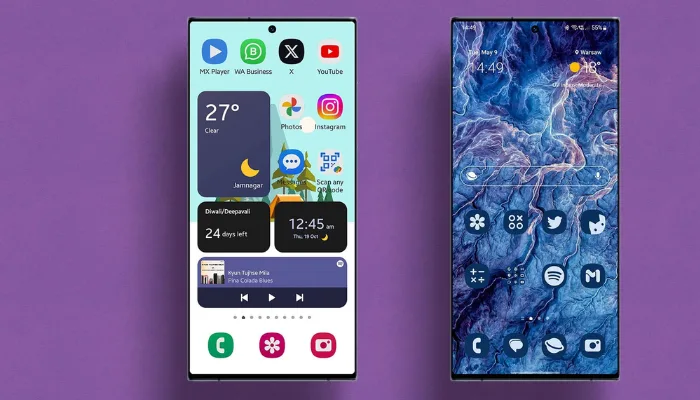
Step-by-Step: Apply a Theme to Your Home Screen
Follow these steps to set up a theme fast:
- Long press your home screen.
- Tap Themes from the menu.
- Pick a category or search bar.
- Tap a theme to open its preview.
- Hit Download if free.
- Tap Apply at the bottom.
- Wait for the screen to refresh.
Now your icons look different, colors match, and wallpaper fits perfect. Go back to Themes anytime to switch. Saved themes stay in My stuff for quick access.
If the theme misses some apps, that happens with third-party apps. Samsung controls first-party apps like Settings and Camera best.
How to Use Samsung Galaxy Themes Without Subscription?
Many top themes lock behind a monthly fee now. You do not need to pay to get a great look. Stick to free themes in the store – they update daily and cover all styles.
Search "free" in Themes app to filter them out. Categories like Always On Display have hundreds at no cost. Download a few and mix parts, like icons from one and wallpaper from another.
For more options without limits, use the Icons tab. Long press home screen, tap Themes, then Icons at bottom. Browse free packs here. Tap Download, then Apply to home screen only. No full theme needed. This keeps your phone fresh without any account upgrades. Samsung pushes free content to keep users happy.
How to Change App Icons on Samsung Without Themes?
You can update icons without touching full themes. Pinch inward on home screen to edit. Go to Wallpaper and style, then Color palette. Pick colors from your wallpaper – it tints all icons at once.
Apply to apps for a uniform look. Blue wallpaper makes icons blue. This built-in tool works on One UI 7 and Android 14 without extra apps.
Next, open Settings, scroll to Themes, tap Icons tab. Featured shows Samsung picks – many free. Download one pack, like a round style or flat design. Apply it, and icons change across your screen. For single icons, long press an app, tap Edit. Some let you pick from gallery or basic shapes. This method stays safe and fast.
Best Free Themes to Try Right Now
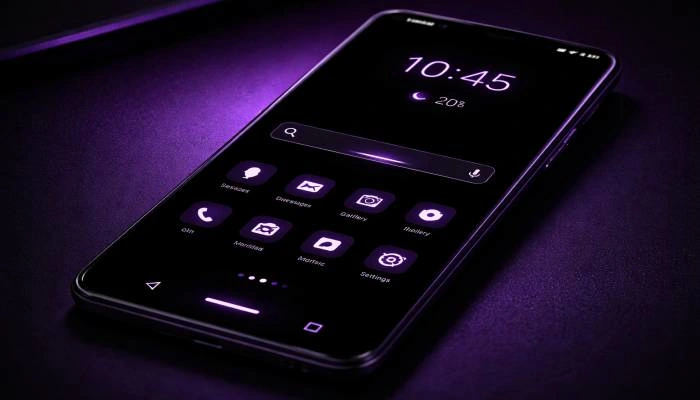
Dark themes top the list for battery life. Look for AMOLED black ones – they make text pop on Galaxy screens. Red and blue mixes create purple glows that feel modern.
Colorful packs add life with animations on lock screen. Search "expression" for ones with moving backgrounds. Minimal white themes clean up clutter for work days.
Icon-only changes give quick wins. Round icons soften the look, while square ones match Pixel phones. Test a few – your phone feels new each time. Popular picks include nature scenes with leaf icons and city nights with neon lights. Download from Icons tab for no-risk trials.
You May Also Read: Samsung Upcoming Phones 2026: Complete List of New Galaxy
Galaxy Themes Mod APK on Android 14: What You Need to Know
- Mod APKs promise paid themes for free. They pop up on forums and sites. But they bring big risks on Android 14.
- First, they often fail to install. Samsung patched many tricks in recent updates. You might brick your phone or lose data.
- Second, malware hides in APK files. Scammers add viruses that steal info or show ads nonstop. Stick to Galaxy Store – it's safer.
- Third, no support for new phones. Android 14 blocks old mods. Even if it works, updates break them fast.
Better choice: Use free store options or color palettes. They deliver 90% of the look without danger. Thousands of users report clean installs from official sources.
Tips to Make Themes Last and Look Better
- Pair themes with Good Lock app from Galaxy Store. It adds home screen tweaks like bigger folders. Download modules one by one.
- Clear cache in Themes app monthly. Go to Settings, Apps, Themes, Storage, Clear cache. This fixes slow loading.
- Back up your setup. In Themes, tap Menu, My stuff, three dots, Back up. Save to Samsung account for easy restore.
- Match themes to your case color. Black phone with light theme pops more. Test in different lights.
Common Fixes for Theme Problems
- Icons stuck old? Restart device full. Force close Themes too.
- Wallpaper flips back? Check lock screen settings match.
- Runs slow? Drop heavy animations, pick static ones.
- Download stalls? Free 200MB space, use Wi-Fi steady.
- App crashes rare but update One UI fixes. All back normal fast.
Why Users Keep Coming Back to Galaxy Themes?
- Stock setup bores quick. Themes refresh daily no cost. Samsung tunes for their hardware best.
- Coffee run, show off new look. "Cool phone" comments roll in. No new buy needed.
- Battery holds, eyes rest, style yours. Start small, layer favorites over weeks.
- Your Galaxy turns daily tool to favorite carry. Themes make that happen free and fast.
Wrapping It Up
Samsung Galaxy themes give your phone a fresh look every day with no extra cost. You find free ones in the store that change icons, colors, and wallpapers to fit what you need.
Try a download now play with icon packs or color shifts from your photos – and your screen matches your style perfect. Official ways keep everything running smooth and safe, so your Galaxy feels new without any hassle.
FAQ
How do I use Samsung Galaxy themes without subscription?
Just open Themes app, tap search for free ones, download, then apply. No fees hit you, and icons plus backgrounds switch fast.
Can I change app icons on Samsung without themes?
Sure, pinch on home screen to edit mode, pick Color palette, choose from your wallpaper pic. All icons take on that shade quick.
What about Galaxy themes mod APK on Android 14?
Leave those alone – they mess up installs and bring bad bugs. Store free themes do the job clean every time.
Which free Samsung Galaxy themes save battery most?
Go for dark black styles first. Those cut power on the screen since black parts stay off longer.
Why pick Samsung Galaxy themes over other apps?
They work right with your phone's setup, no side downloads. Swap them anytime with easy backups in place.