
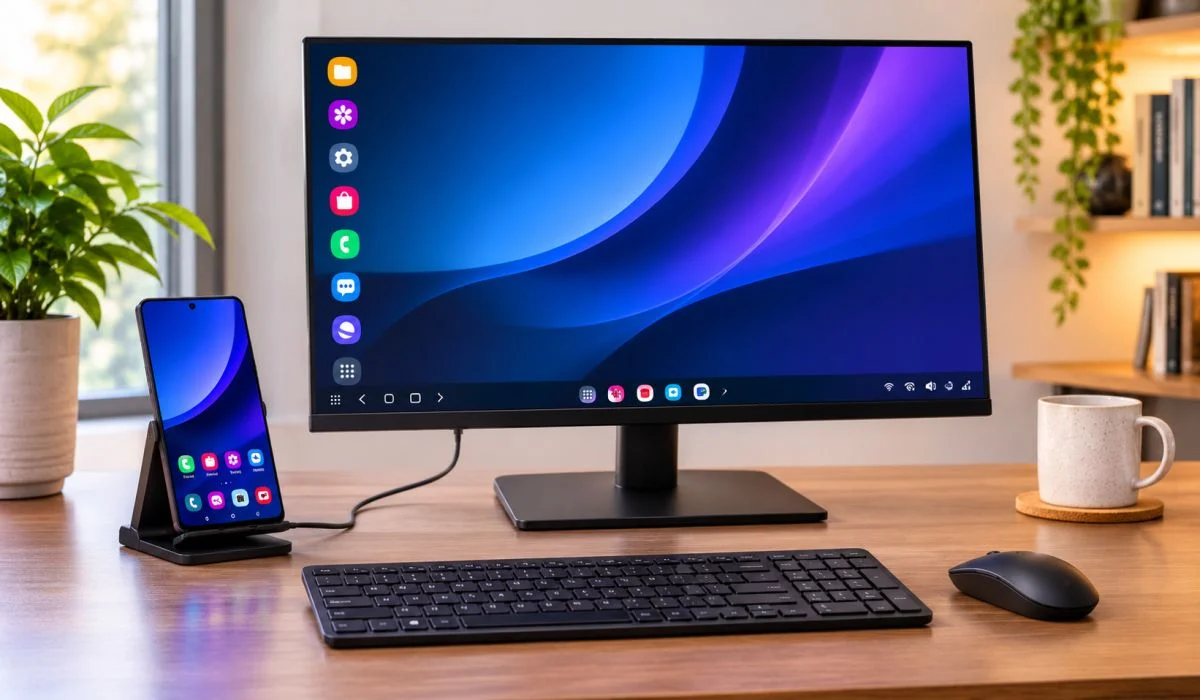
Samsung DeX turns your Galaxy phone or tablet into a desktop computer. It is not a gimmick. Connect to a monitor, TV, or PC and you get windows, a taskbar, and mouse and keyboard support. This article covers Samsung DeX features and benefits in plain terms. You get resizable windows, up to five apps at once, four separate workspaces, and wireless connection to Smart TVs.
The phone can double as a touchpad and keyboard. DeX for PC lets you drag files between devices. We also list supported devices, explain the app situation, and cover the One UI 7 limitation. No jargon Just what DeX does and whether it fits your workflow.
What Is Samsung DeX?
DeX stands for "Desktop Experience." It changes the interface on your Galaxy device from a phone layout to a desktop layout . When you connect to an external screen, you get resizable windows, a taskbar, keyboard shortcuts, and most Android apps running in desktop format .
The idea is simple: your phone is powerful enough to handle many daily tasks. DeX unlocks that power on a bigger screen.
Read More: Galaxy AI Samsung Features: Best Tools, Supported Phones and Updates
Samsung DeX Features and Benefits
A Real Desktop Interface
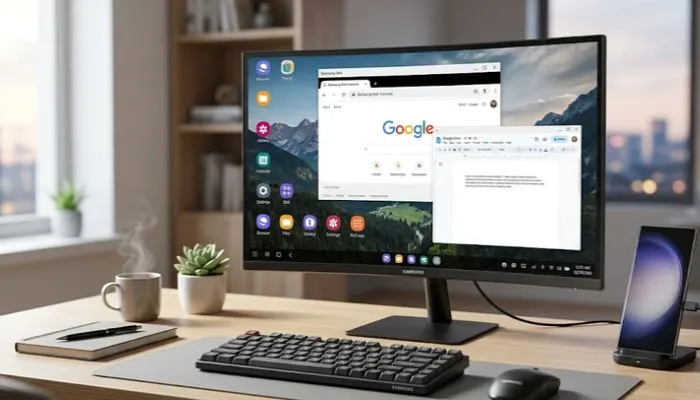
DeX does not just mirror your phone screen. It creates a separate desktop environment. You can open multiple windows, drag them around, and resize them like on a PC . The taskbar gives you quick access to apps, and you can run up to five apps at once .
Multiple Workspaces
You can create up to four workspaces, each with its own set of apps. This is useful for separating work from personal tasks. Switching between workspaces uses simple gestures, even in fullscreen mode .
Wireless Connection
You do not need a cable. Wireless DeX lets you connect to a compatible Smart TV or monitor over Wi-Fi . Tap the DeX button in Quick Settings, select your TV, and start. This is great for presentations or watching content on a big screen.
Extended Workspace
If you connect to an external monitor, you can use it as a second screen. Move apps freely between your tablet and the monitor. The One UI look stays consistent across both screens .
Phone as Touchpad and Keyboard
When connected wirelessly, your Galaxy phone can act as a touchpad with multi-finger gestures. It can also serve as an on-screen keyboard. You do not need to carry a separate mouse or keyboard for basic use .
File Transfer with DeX for PC
The DeX for PC app lets you run DeX in a window on your Windows computer. You can drag and drop files between your phone and PC, copy and paste text, and run up to five mobile apps on your computer screen .
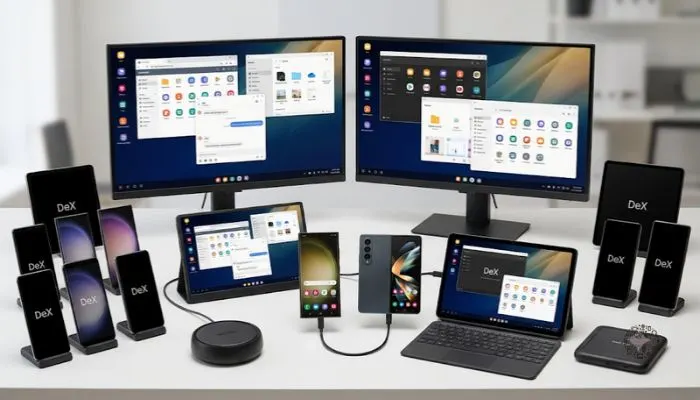
Samsung DeX Supported Devices
Not every Galaxy device supports DeX. Here is the current list based on Samsung's official documentation .
- Galaxy S phones: S8 series through S26 series.
Note: The S26 FE does not support DeX over HDMI or wireless. - Galaxy Note phones: Note8, Note9, Note10 series, Note20 series.
- Galaxy Foldables: Fold, Z Fold2 through Z Fold8 Ultra, Z Flip7, Z Flip8.
Note: The Z Flip7 FE does not support DeX over HDMI or wireless. - Galaxy A phones: A90 5G only.
- Galaxy Tablets: Tab S4, Tab S5e, Tab S6 through Tab S12 series, Tab Active Pro, Tab Active 3.
Note: FE and Lite models often lack DeX support. Check before buying. - Important limitation: DeX for PC is not supported on the Galaxy S25 series, S26 series, Z Fold7, Z Flip7, Z Fold8, Z Flip8, Z TriFold, or any device updated to One UI 7 or later. Samsung recommends using Link to Windows instead for those devices .
You May Also Read: Upcoming Samsung Tablets in 2026: Price and Features.
Samsung DeX for PC and App
DeX for PC
- The DeX for PC app is a desktop program for Windows and Mac. You install it on your computer, connect your phone with a USB cable, and a DeX window opens on your screen. You can control your phone apps with your computer's mouse and keyboard .
- The app is useful for hybrid work. You can text contacts from your PC, transfer files by dragging them between windows, and run mobile apps alongside your desktop software .
Note: As mentioned above, newer devices running One UI 7 or later do not support DeX for PC. Samsung is pushing Link to Windows as the replacement .
Samsung DeX App and APK
- DeX is built into supported Galaxy devices. You do not need to download a separate app to use DeX on a monitor or TV. The feature is part of the system software.
- For DeX for PC, you download the installer from Samsung's website onto your computer, not onto your phone .
- If you see "Samsung DeX APK" downloads online, these are usually third-party or system component files. They are not required for normal use. The official DeX experience comes with your device.
Community Alternatives
- Samsung's official DeX for PC stopped working on newer One UI versions. Some developers have created community tools to fill the gap. DeXter is one example.
- It runs DeX in a window on Windows using ADB, without root or installing anything on the phone . These tools are not official and require technical setup. They are not recommended for most users.
The Bottom Line
Samsung DeX is one of the most practical features on Galaxy devices. It turns your phone into a desktop workstation when you need one. The benefits are real: windows, multitasking, wireless connection, and file transfer with a PC.
Check your device compatibility before relying on it. Most flagship phones and tablets support it. Newer models running One UI 7 or later lose DeX for PC, so use Link to Windows instead. For travel, presentations, and light work, DeX can replace a laptop. For heavy tasks, it cannot. Know the limits and use it where it fits.
FAQs
1. Which Samsung devices support DeX?
Most flagship Galaxy phones and tablets support DeX. This includes Galaxy S8 through S26 series, Note8 through Note20, Z Fold and Z Flip series, and Tab S4 through Tab S12. Budget A-series phones generally do not support DeX, except the A90 5G .
2. Can I use DeX without a cable?
Yes. Wireless DeX connects to compatible Smart TVs and monitors over Wi-Fi. Open Quick Settings, tap Wireless DeX, and select your display .
3. Is there a Samsung DeX APK I need to download?
No. DeX is built into supported Galaxy devices. You do not need to download an APK. For DeX on a PC, you download the official app from Samsung's website onto your computer .
4. Does DeX work on Windows and Mac?
DeX for PC works on Windows and Mac, but only on older devices. Samsung dropped support for DeX for PC on devices running One UI 7 or later. Those devices should use Link to Windows instead .
5. How many apps can I run at once in DeX?
You can run up to five apps simultaneously. If you open a sixth, the oldest one minimizes automatically. You can also create up to four separate workspaces for different tasks .
6. Can I use my phone as a touchpad in DeX?
Yes. When connected wirelessly, your Galaxy phone can act as a touchpad with gestures. It can also be used as an on-screen keyboard. This means you can leave your mouse and keyboard at home for simple tasks .
7. Is DeX good for gaming?
DeX is not designed for gaming. It is a productivity tool. Some games work, but the desktop interface and input handling are not optimized for fast-paced games. Use it for work, not play.