
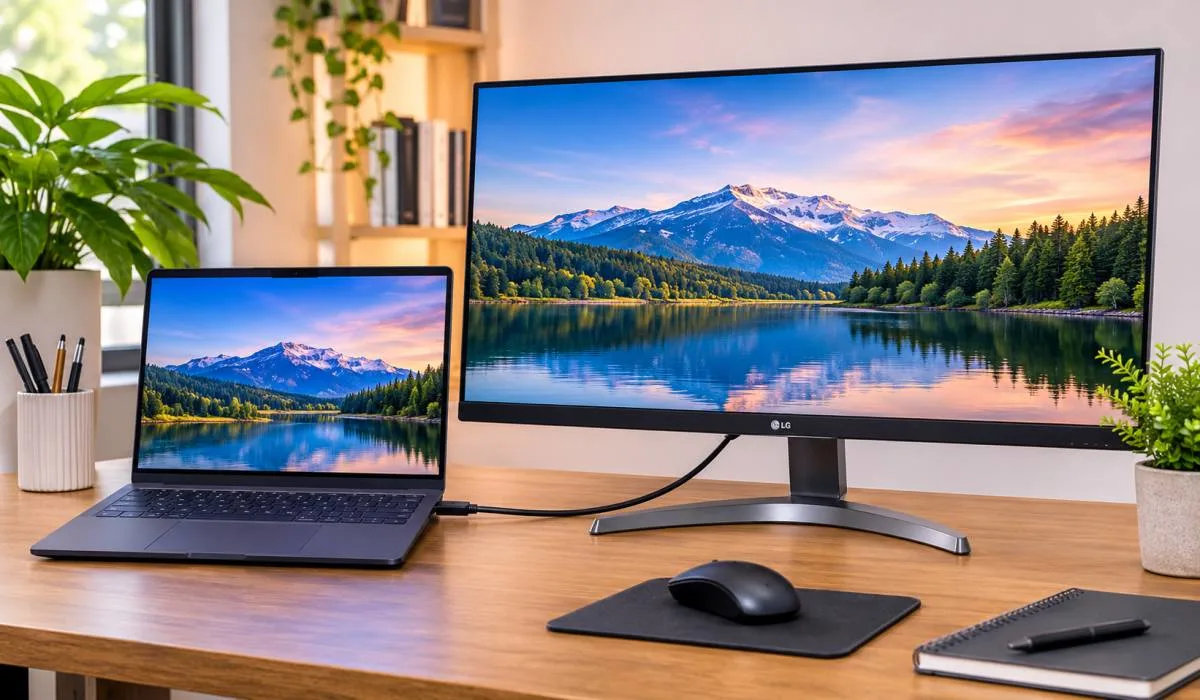
Connecting an LG monitor to your laptop is easier than you think. You do not need a technician do not need to pay anyone Just one cable and a few button presses. Most laptops have HDMI most LG monitors have HDMI too.
So plug one end into laptop. Other end into monitor. Select input on monitor. Press Windows + P Done. If you have MacBook Air, use USB-C to HDMI cable. If you want wireless, smart LG monitors support it but normal monitors need cable. Simple, No confusion. This guide will tell you how to connect LG monitor to laptop in easy steps. Every method covered HDMI, PC, CPU, Wireless, MacBook.
First, Check Your Ports
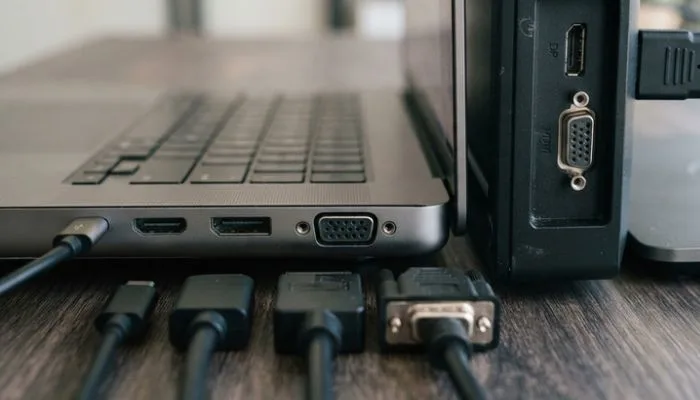
- Before anything, look at your laptop. Turn it sideways. See that slot? That is HDMI. Most laptops have it. Some thin ones only have USB-C. That small oval port.
- Now look at the back of your LG monitor. See what ports are there. HDMI? DisplayPort? VGA? Match them with your laptop.
- My friend bought a cable without checking. He got VGA cable. His laptop had no VGA port. Waste of ₹300. So check first. Then buy.
- Also plug the monitor into power. Press the power button. It should light up. Show LG logo. Or say "No Signal". That is normal. It is waiting for your laptop.
Read More: How to Update webOS on LG Smart TV: A Complete Guide.
How to Connect LG Monitor to Laptop with HDMI?
This is the easiest way. Most people use this.
Take the HDMI cable. One end goes into laptop. Other end into monitor. Remember which port you used. HDMI 1 or HDMI 2. Most monitors have two.
Now press the input button on the monitor. It is usually under the screen. Or at the back right side. A small joystick or button. Press it. A menu comes. Select the HDMI you used. HDMI 1 or HDMI 2.
Wait five seconds. Your laptop screen should appear. If it does not, do not panic. Press Windows key and P together. A menu slides out from the right. Choose "Duplicate" if you want same screen on both. Choose "Extend" if you want two separate screens. Extend is better. More space to work.
For MacBook, go to System Settings. Click Displays. Click Detect Displays. It will find the monitor. Then choose mirror or extend.
That is it. Seriously that is all.
How to Connect LG Monitor to PC with HDMI?
Same thing. But PC has more ports. Look at the back of your computer cabinet.
You will see many ports. USB ports. Audio ports. And HDMI. But wait. There might be two HDMI ports. One on motherboard. One on graphics card. Always use the graphics card one. It is lower down. Usually horizontal. The motherboard port might not work if you have a graphics card installed.
My cousin made this mistake. He plugged into motherboard. No display. He thought monitor was broken. Then he saw the graphics card port. Plugged there. Worked instantly. So check properly.
Rest is same. Cable in. Select input on monitor. Windows + P. Done.
How to Connect LG Monitor to CPU?
CPU means the computer box. Same steps as PC. Nothing different. Just remember the graphics card thing. That is the only tricky part.
If your CPU is old and has no graphics card, use the motherboard HDMI. It will work fine. If you have a graphics card, use that port. Simple.
How to Connect LG Monitor to Laptop Wirelessly?
No cable? Want to sit on the sofa and work? Possible. But only if your monitor supports it.
Press Windows key and K on your laptop. A panel opens on the right. It searches for wireless displays. Your LG monitor name should appear. Click it. Click Connect. Both screens might show a code. Check it matches. Click Yes. Done.
But here is the thing. Most LG monitors do not support this. Only smart ones do. Check your manual. Or check if your monitor has WiFi built in. If not, this will not work. No point trying.
If your monitor is a smart LG monitor with WiFi, then yes. It works nicely. No cable mess on your desk.
How to Connect LG Monitor to WiFi?
People ask this a lot. Let me clear it up.
- Normal LG monitors do not connect to WiFi. They are just screens. They show what your laptop sends. No internet needed.
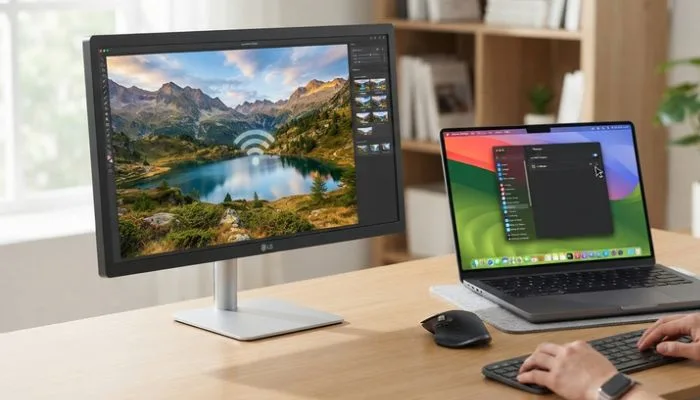
- Smart LG monitors can connect to WiFi. For software updates. For screen mirroring from phone. For Netflix and YouTube directly on monitor.
If you have a smart one, here is how. Press Settings on remote. Go to Network. Select WiFi. Choose your home WiFi name. Enter password. Done.
Why connect monitor to WiFi? Only if you want smart features. Otherwise no need. Cable is enough.
How to Connect LG Monitor to MacBook Air?
MacBook Air is thin. No HDMI port. Only USB-C. So you need an adapter or special cable.
Buy USB-C to HDMI cable. Costs ₹500 to ₹1500 online. Plug USB-C end into MacBook. HDMI end into monitor. Select input. Done.
Or buy a USB-C hub. It has HDMI plus USB ports plus SD card slot. More useful. Plug hub into MacBook. HDMI cable from hub to monitor. You get extra ports also. Better deal.
If your LG monitor supports AirPlay, you can do it wirelessly. Connect monitor to same WiFi as MacBook. On MacBook, click Control Center. Click Screen Mirroring. Select monitor. Done but again, only smart monitors support this.
You May Also Read: LG Smart TV Features Explained: Simple Guide for Buyers.
When Things Do Not Work?
Happens sometimes. Do not worry. Check these.
- Monitor says "No Signal"? Cable loose. Push it in properly. Both ends. Check input selection. Try different HDMI port on monitor. Try different cable. Cheap cables cause problems.
- Screen blank but monitor on? Press Windows + P. Select Duplicate or Extend. Check display settings. Update graphics driver.
- Blurry screen? Resolution wrong. Go to Display Settings. Change resolution. Match monitor's native resolution. It is written on the box or manual.
Wireless not working? Both devices on same WiFi? Monitor supports Miracast? Move closer to router. Restart both.
MacBook not detecting? Try different USB-C port. Go to System Settings. Displays. Detect Displays. Restart MacBook.
Few Tips from My Experience
- Buy good cable. Cheap ones fail. Belkin, Amazon Basics, LG original. Worth the extra money.
- Keep cable short. 1.5 to 2 meter is enough. Long cables lose signal. Screen flickers.
- Update drivers. Windows: Device Manager. Update display adapter. Mac: Update macOS. Keeps things smooth.
- Use extend mode. Not mirror. Two screens. More work done. Better.
Set correct resolution. Match monitor. Text clear. Images sharp.
Final Words
Connecting LG monitor to laptop is not rocket science. Plug cable. Select input. Change display setting. Done.
HDMI is easiest. USB-C for MacBook. Wireless if you have smart monitor that is all. If something fails, check cable first. Most problems are cable problems. Then input selection. Then display settings.
You can do this. No technician needed. My uncle did it. You can too.
FAQs
1. Why does my LG monitor say "No Signal" after connecting?
Cable is loose. Push it in properly at both ends. Check monitor input. Press the input button on monitor. Select HDMI 1 or HDMI 2. Whichever port you used. If still not working, try a different cable. Most problems are cable problems. My friend had same issue. New cable fixed it.
2. Can I connect LG monitor to laptop without cable?
Only if your monitor is a smart LG monitor. It needs WiFi and Miracast support. Press Windows key + K on laptop. Select monitor. Connect. But most LG monitors do not support this. Check your manual first. Normal monitors need cable. No way around it.
3. How do I connect LG monitor to MacBook Air?
MacBook Air has no HDMI port. Only USB-C. So buy USB-C to HDMI cable. Costs ₹500 to ₹1500. Plug one end into MacBook. Other end into monitor. Select input. Done. Or buy USB-C hub. Gives extra ports also. Better deal.
4. My screen is blurry. What to do?
Resolution is wrong. Go to Display Settings. Change resolution. Match your monitor's native resolution. It is written on the box or manual. Set it to recommended. Text will become clear. Images will be sharp. Also check refresh rate. Set to 60Hz or higher.
5. How do I connect LG monitor to CPU?
Same as PC connection. Check back of CPU cabinet. Find HDMI port. If you have graphics card, use that port. Not the motherboard one. Motherboard port may not work. Plug cable. Turn on both. Select input on monitor. Press Windows + P. Choose Duplicate or Extend done.